Item entry and Keypad
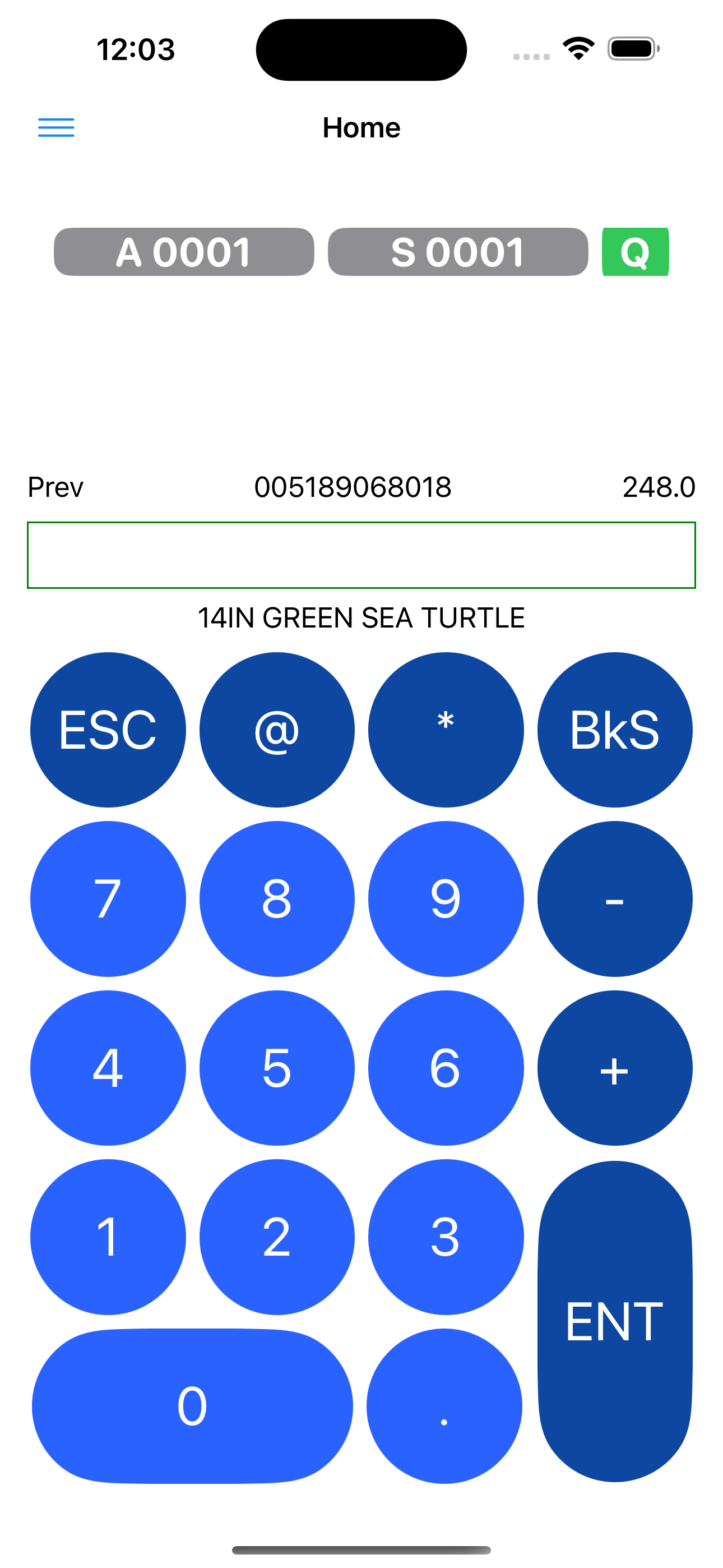
Iphone screenshot

Item entry and Keypad Help
Starting at the top, you start on the upper left with a menu button that will show a list of other screens available.Next, you have a button for Area, Section, and a button to quickly change from defaulting 1 as quantity as entering any quantities. The Area and Section buttons are enabled one you have typed four digits and will allow you to change either area or section.
Next, you have the Prev (Previous entry info). It show the previous item and quantity.
Next is the input field for all your entries. On this field, you can tap any of the buttons or when scanning the data will be shown here.
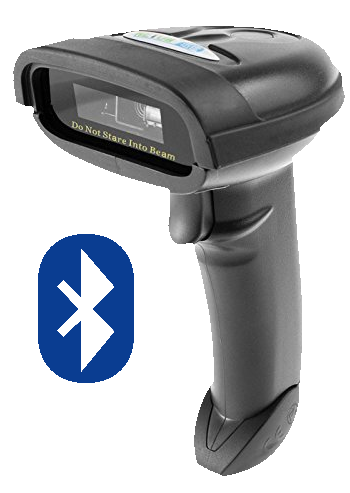
You can use a barcode or QR scanner.
Besides pairing a Bluetooth scanner, you can also pair a keypad. The keypad will increase the efficiency.
Typical entry consist of scanning a product barcode or QR then entering a quantity. The app's Settings allows you to change how the inventory is taken.
You can default quantity as 1 and keep scanning items until the inventory is complete.
When entering quantities, you can entery any valid math expression and it will be calculated accordingly.
For example, you can do the following:
    Item          Quantity
    12345678      12*2     ENTER  evaluated to 24

    12345678      13+3+4   ENTER  evaluated to 20
You can set it to use previous item. Whith that setting, you scan an item and keep entering quantities until you scan the next item.
    Item               Quantity

    12345678           12        ENTER

                       13+3+4    ENTER

                       4         ENTER

    12347890           10        ENTER